Start with Ipster today

Ipster answers questions, requests and appointments directly through your connected system. 24/7 availability for your business.

Download

Know who is calling. Before you pick up.

For every call in Elevate UC, Xelion or 3CX, Ipster Call shows who is calling and what the AI agent already discussed with the caller. Download the app for your Mac or Windows PC.

Download

Choose your version

For everyone with an Ipster account. Download the latest version here, so you know you have the right one.

Mac

Version
1.8
Size
2.6 MB
System
macOS 14 or newer
Processor
Apple silicon and Intel

Signed by Ipster B.V. and approved by Apple.

Open the file and drag Ipster Call to Applications. The app then lives in your menu bar.

Download for Mac
Verification details
File
Ipster-Call-1.8.dmg
SHA-256
9395333875fbc71d0cca3498c4982d91f14a155406195195b55ce510e105c023

Use the SHA-256 checksum to verify that the file is unchanged.

Windows

Version
1.8.0
Size
113 MB
System
Windows 10 and 11
Processor
64-bit (x64)

You do not need administrator rights. The app installs for you only.

Double-click the installer. The app then lives in the system tray, at the bottom right next to the clock.

Windows warns you the first time

The installer is not digitally signed yet, so Windows SmartScreen shows Windows protected your PC. Click More info and then Run anyway.

The Windows installer is coming soon. Get in touch if you would like to try it now.

Coming soon
Verification details
File
Ipster-Call-Setup-1.8.0-x64.exe
SHA-256
5b4510509412da47811aca55456ec5e86fa79837d588fe7fc65ba78d37e1270f

Use the SHA-256 checksum to verify that the file is unchanged.

You need the Elevate UC app, the Xelion app or the 3CX web client (in Chrome or Edge) and an Ipster account.

What you see

Everything about the caller on one card

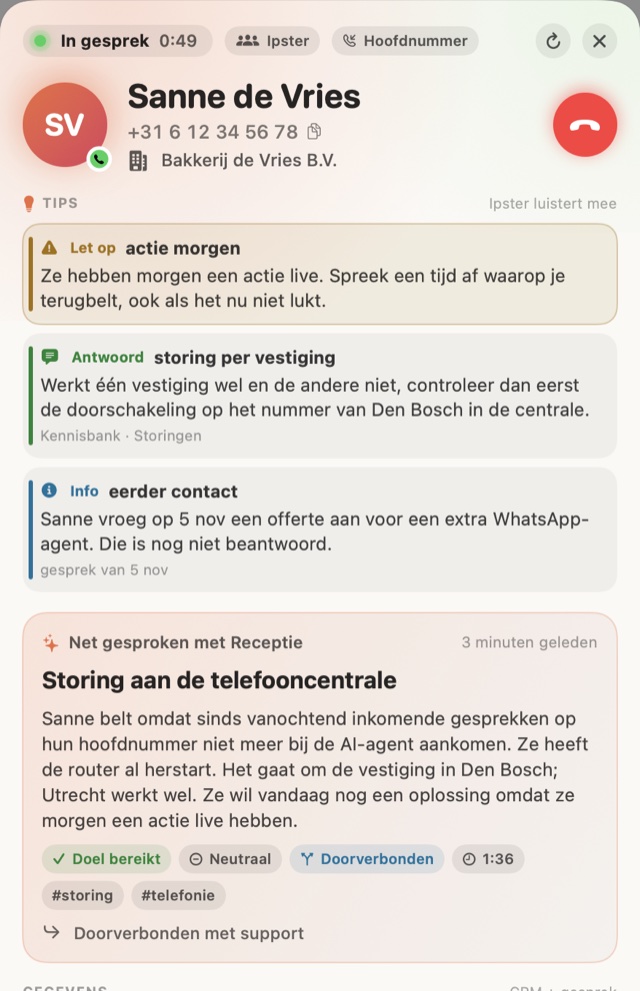
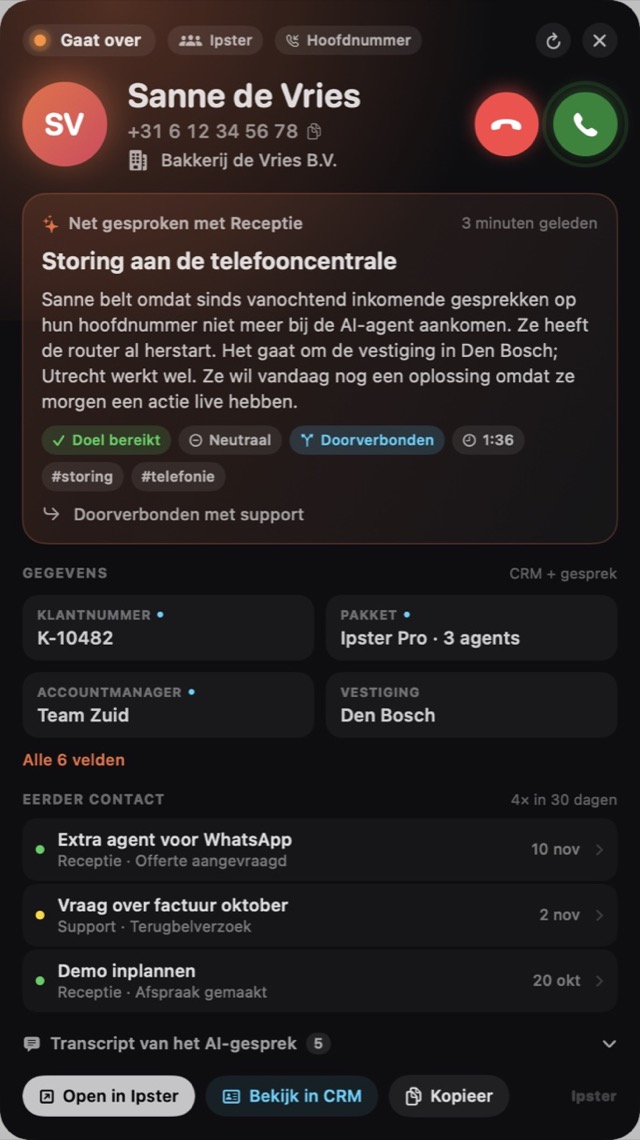
When the phone rings, or when you call someone yourself, a card slides in at the top right. No searching the CRM, no asking what the call is about.

Who is calling

Name, company and number from your CRM. If the caller is not in there yet, you see what the AI agent picked up.

What was already discussed

The caller's question, a short summary, the sentiment and whether the goal was reached. The transcript is right below.

Data from your CRM

Customer number, plan, location or whatever else your agent records. Click a field and it is on your clipboard.

Earlier contact

All conversations of the last 30 days, with subject and outcome. So you know if someone is calling for the third time.

Pick up from the card

Answer, decline and hang up without switching to your phone app. The card disappears by itself when a colleague picks up.

Tips during the call

Ipster listens in and gives you answers from your knowledge base and things to watch out for. Still an experiment.

How to start

Ready in three minutes

  1. 1

    Install the app

    Mac: open the file and drag Ipster Call to Applications. Windows: double-click the installer.

  2. 2

    Connect to Ipster

    Log in with your own Ipster account. Then choose the agent that looks up your callers in your CRM.

  3. 3

    Call and watch along

    Answer a call or call someone yourself. The card appears at the top right. On the Mac you grant access once under Accessibility if you want to answer from the card.

Need help installing?

Get in touch and we will help you get started.

Frequently asked questions

About Ipster Call

With the Elevate UC app, the Xelion app and the 3CX web client (in Chrome or Edge), on Mac and on Windows. Using something else? Let us know and we will look into it.

Yes. The app shows data from your own Ipster environment. Without an account you can still view a demo call from the menu bar or the system tray.

The Windows installer is not digitally signed yet. That is why Windows SmartScreen shows a warning the first time. Click More info and then Run anyway. Use the SHA-256 checksum with the download to verify that the file comes from us.

Download the latest version from this page. On the Mac you replace the old app in Applications, on Windows you run the new installer. Your settings and connection are kept.

Only what you can see in Ipster yourself, and read only. You log in at Ipster itself, so your password never ends up in the app.

We use cookies to improve the user experience, analyse website traffic and deliver personalised content. Read our cookie policy.